Overview
This guide provides clear instructions for Xtrm personal account holders on how to update login credentials—such as email addresses and passwords—directly from account settings. It also covers recovery procedures for forgotten passwords and steps to regain access if you no longer have access to your registered email address.
1. How to Update Your Email or Password (When Logged In)
If you know your current login details and want to update them in your profile:
Log in: Go to www.xtrm.com and sign in to your personal account.
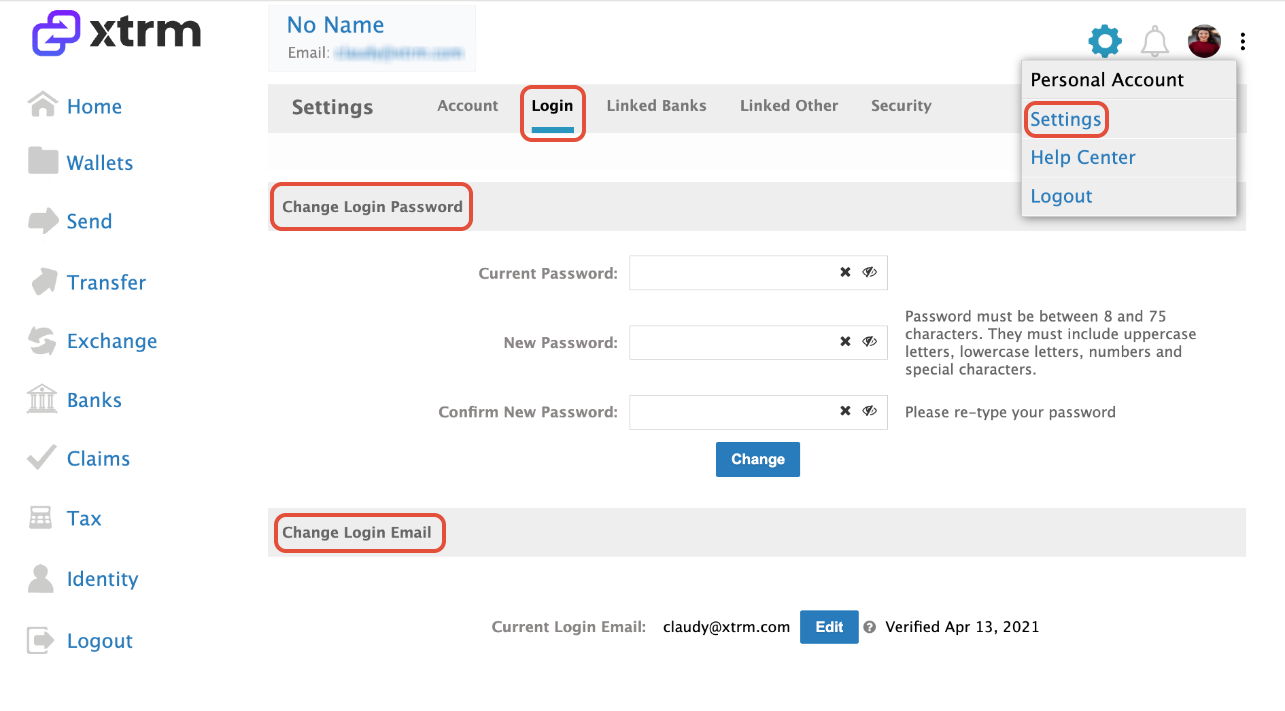
Access Settings: Click on the Settings gear icon located in the top-right corner of the page. and click on Settings and navigate to Login.
Update Information: Enter your Current Password, create a new password and confirm. Once complete click on Change. To change your email address, please proceed to click on Edit next to your Current Login Email and follow the prompts accordingly.
2. Resetting a Forgotten Password
If you know your registered email address but cannot remember your password:
Go to the Xtrm Password Reset Page.
Enter your registered email address and follow the on-screen instructions to receive a password reset link.
3. Recovering Account Access (Lost or Unknown Email)
If you cannot remember which email address is linked to your XTRM account, or if you no longer have access to that email inbox:
Submit a ticket through the Support Desk or email our support team directly at support@xtrm.com.
Include your full name and as many account details as possible (such as linked phone numbers, previous addresses, or transaction history) so our team can locate and verify your profile.
Was this article helpful?
That’s Great!
Thank you for your feedback
Sorry! We couldn't be helpful
Thank you for your feedback
Feedback sent
We appreciate your effort and will try to fix the article