Overview
Linking your employer details to your personal Xtrm account ensures smooth processing for company-sponsored incentives, payroll, or partner disbursements. You can add a new employer or update your current employment information at any time from your account identity settings.
Step-by-Step Instructions
Log In: Go to www.xtrm.com and sign in to your Personal Account.
Access Identity Settings: In the left-hand navigation menu, click Identity.
Select Employer: Click on the Employer tab.
Add or Edit Details:
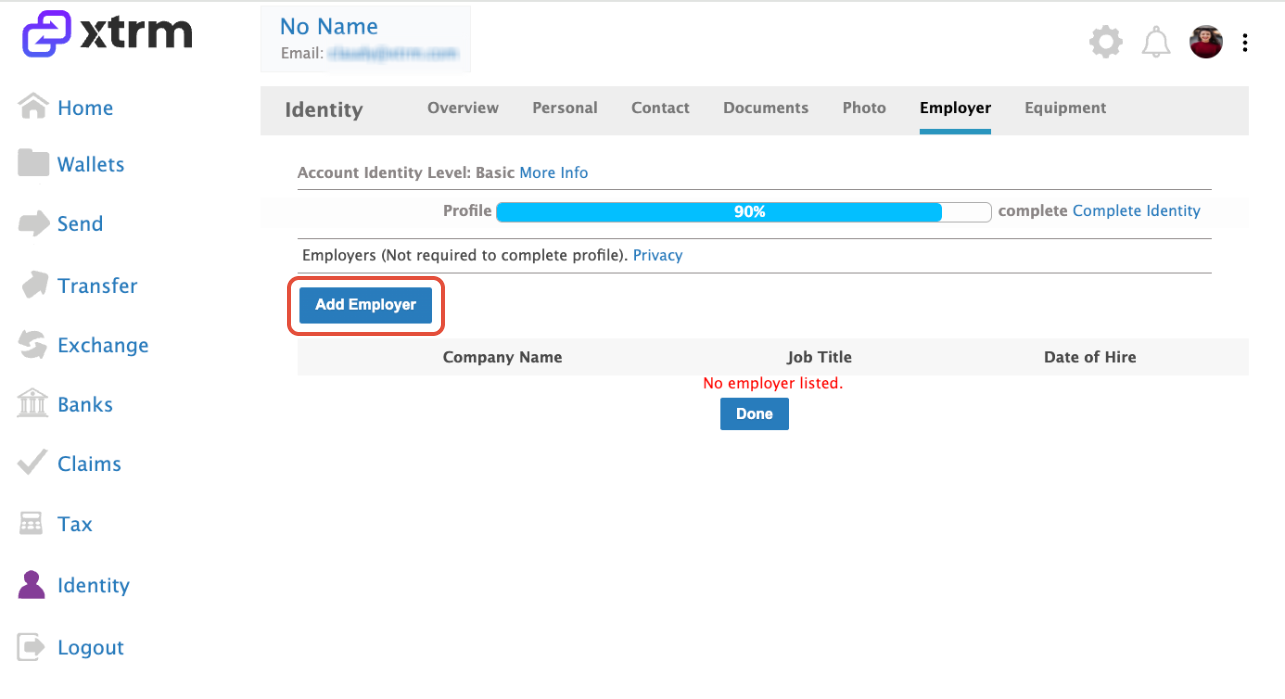
Click Add Employer to input your company details if no employer is currently linked:
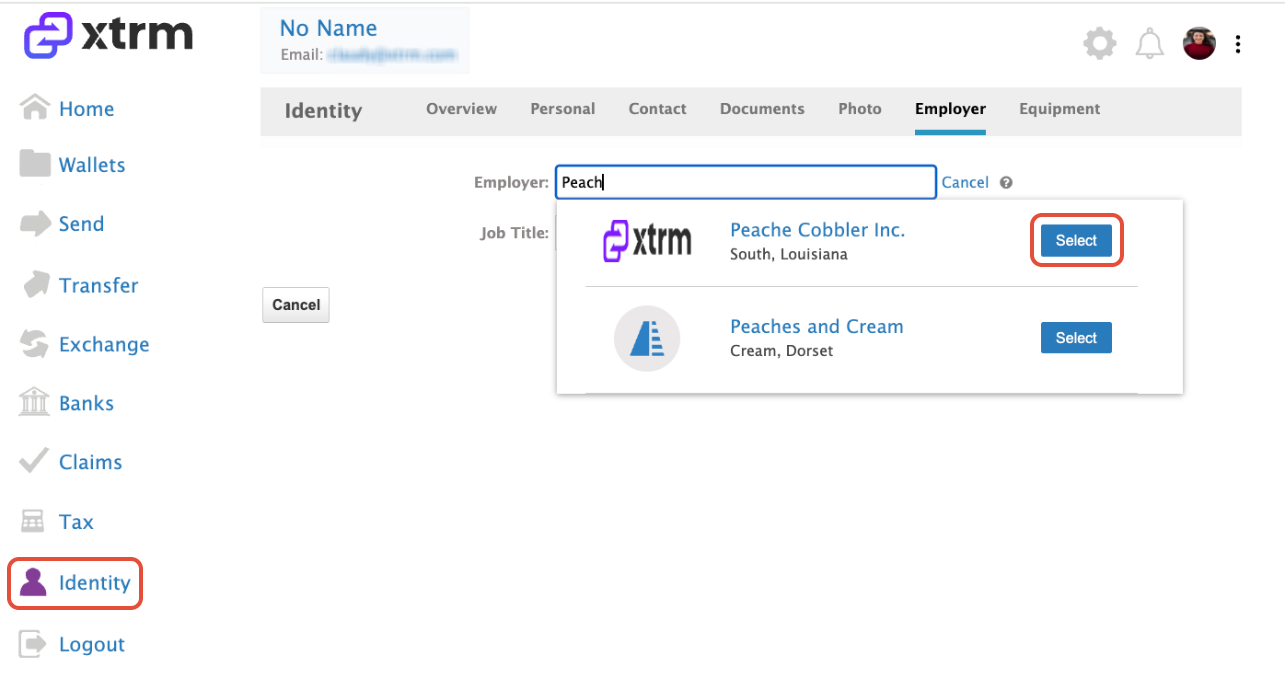
Search by Company name and click on Select, add the job title and click on Save:
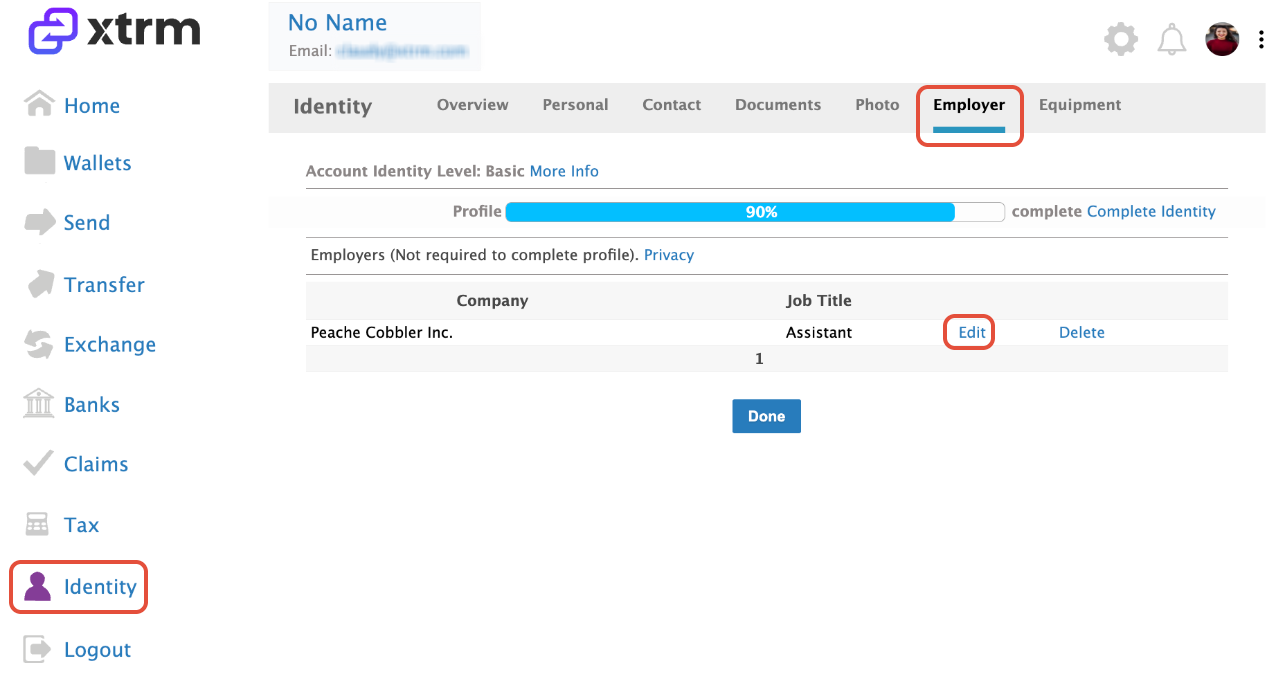
Click Edit to update an existing employer’s information:
Was this article helpful?
That’s Great!
Thank you for your feedback
Sorry! We couldn't be helpful
Thank you for your feedback
Feedback sent
We appreciate your effort and will try to fix the article