Overview
If you participate in motorsports, athletics, or contingency payout programs, you must register your competition equipment (such as motorcycles, cars, or other sports gear) in your Xtrm profile. Registering your equipment ensures that event promoters and sponsors can validate your eligibility and automatically process your contingency earnings.
Prerequisites Before Adding Equipment
- One-Time Account Registration: Ensure you have registered for a free, valid Xtrm account. (Note: If you already received an activation email for a new account, please do not create a second account, as this will confuse the system and cause payment delays).
- Accurate Details: Gather required vehicle/equipment specifications, including the year, make, model, and official Vehicle Identification Number (VIN) or serial number.
- Profile Completion: Complete your profile to 100% to ensure seamless payment processing and access your annual tax documents at year-end.
- Exact Matching: Ensure equipment information matches your event registration and race entry forms to prevent payout delays or declines.
- Automatic Results: You do not need to email or post race results to Xtrm. Results are sent directly to Xtrm by event promoters and paid once approved by the manufacturer.
- Rules & Payouts: Xtrm is strictly the payment processor. We do not determine which promoters, classes, or positions get paid or the payout amounts.
Add your equipment to your profile
Log in: Go to xtrm.com and sign in to your Personal Account.
Access Identity Settings: On the left-hand navigation menu, click Identity.
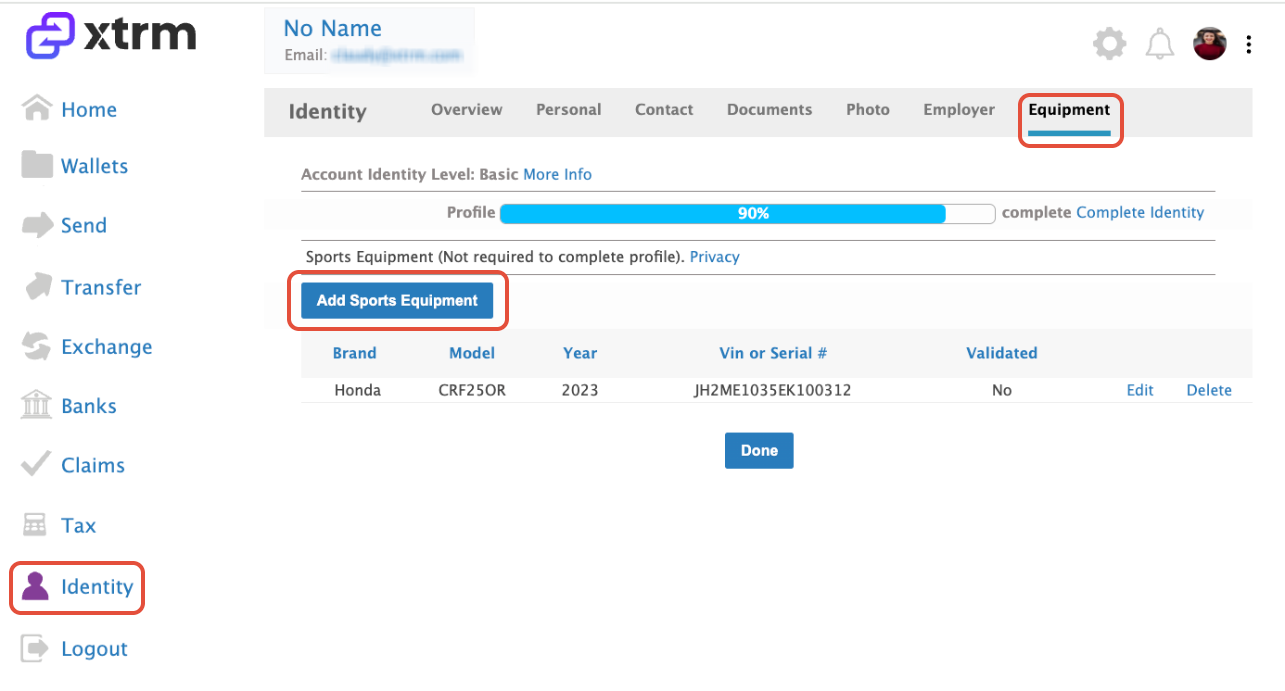
Select Equipment: Click on the Equipment tab.
Add New Equipment:
Click Add Equipment (or select the specific category e.g., Motorcycle, Car, or Sports Gear).
Fill in all required fields, including Year, Make, Model, and VIN / Serial Number.
Save: Review your entries for accuracy and click Save.
Managing or Updating Registered Equipment
Edit Details: Go to Identity, Equipment, locate your registered item, and click Edit to update serial numbers or specifications.
Remove Equipment: If you no longer compete with a specific vehicle or equipment item, click the vertical ellipsis (⋮) or Delete button next to the listed item to remove it from your profile.
Manufacturer VIN Validation & Program Details
| Manufacturer | VIN Validation Required | Program Link |
| Suzuki | Yes | View Suzuki Contingency Program |
Troubleshooting VIN or Serial Number Validation
Adding your equipment and validating your VIN allows manufacturers to reward newer vehicles. If your VIN or Serial Number fails to validate, Xtrm cannot bypass manufacturer records or resolve warranty issues directly. Common reasons for validation issues include:
New Vehicle Registration Lag: If purchased within the last 2–3 weeks, your VIN may not validate until warranty data updates in the system (can take up to 3 weeks). Try re-submitting after this period. Any races held during this window will be paid retroactively once the VIN validates.
Sponsor / Company-Owned Equipment: If your competition gear is owned by a sponsor or company and lacks standard consumer warranty registration, contact the manufacturer directly to request a waiver. The manufacturer will then notify Xtrm. (Note: Warranty registration is separate from state DMV registration).
Was this article helpful?
That’s Great!
Thank you for your feedback
Sorry! We couldn't be helpful
Thank you for your feedback
Feedback sent
We appreciate your effort and will try to fix the article