Overview
When you choose to redeem your wallet balance for a Virtual Visa card or a digital Gift Card, an automated redemption email containing your claim code or access link is sent to your registered Xtrm email address.
If you have not received your redemption email after completing a digital card order, please follow the troubleshooting steps below to locate your email or re-send your redemption link.
1. Step-by-Step Troubleshooting
Check Spam, Junk, and Promotional Folders:
Automated digital reward emails can occasionally be filtered into spam, junk, or promotional folders (e.g., Gmail's Promotions tab). Search your inbox for emails sent from Xtrm or no_reply@notifications.xtrm.com
Verify Order Status in Your Xtrm Account:
Log in to your account at www.xtrm.com.
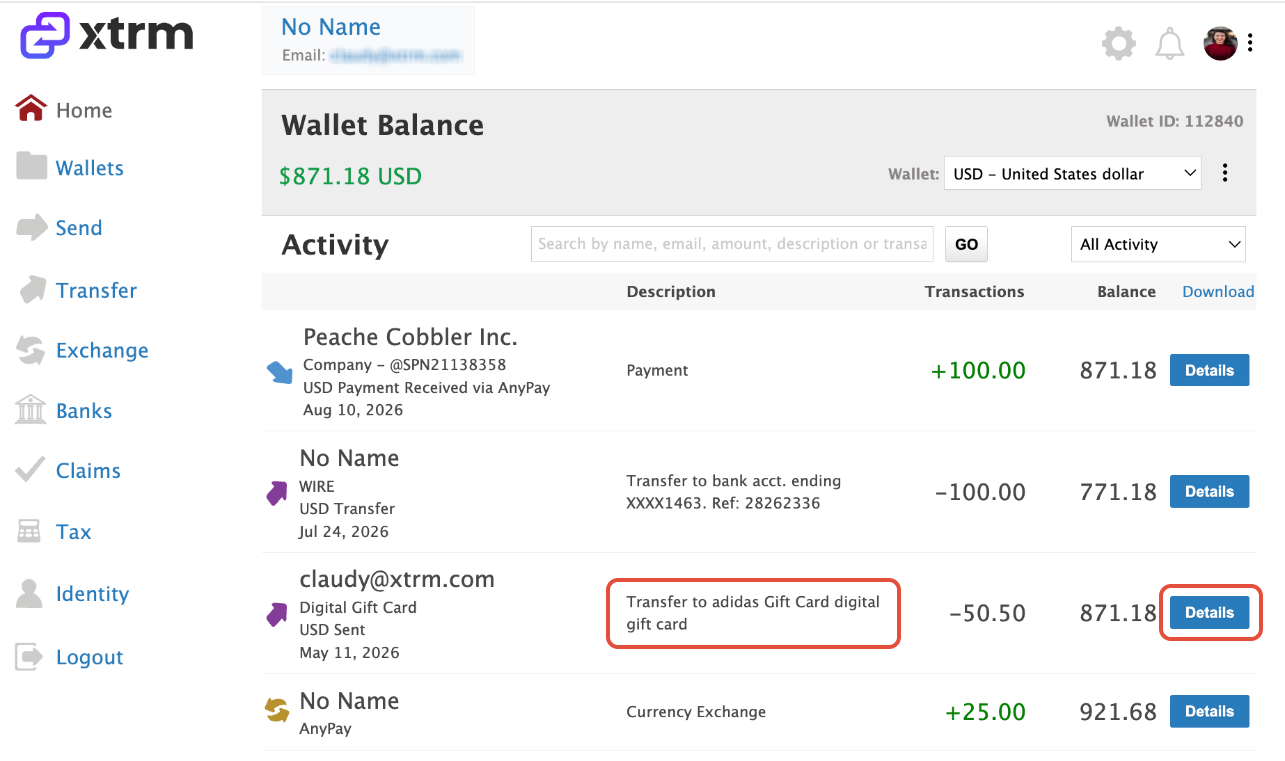
Click on Activity in the main navigation menu.
Locate the transaction for your gift card or Virtual Visa redemption and check its status to ensure the order was successfully completed.
- Confirm Your Registered Email Address:
Ensure that the primary email address listed in your Xtrm profile settings is active, spelled correctly, and accessible.
Resend the Redemption Email:
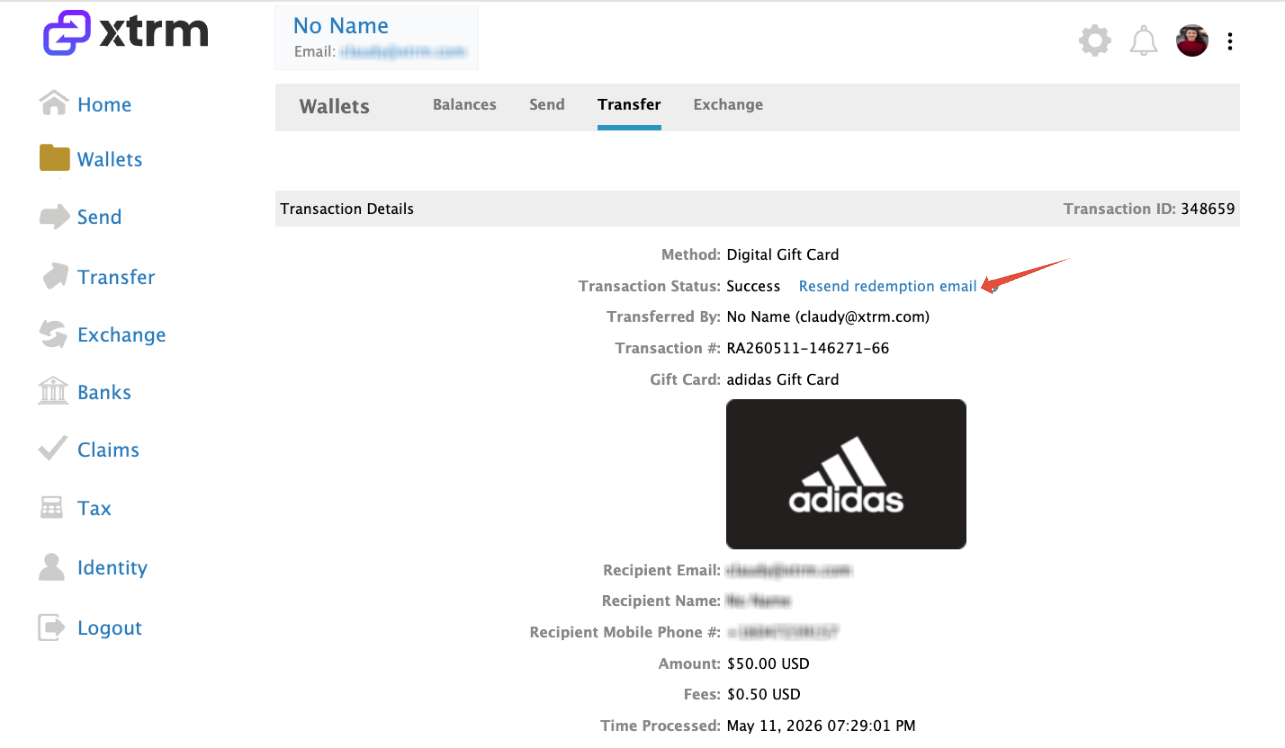
In your Activity log, click Details next to the specific gift card or Virtual Visa order.
Click the Resend Email option to trigger a new redemption email to your inbox.
2. When to Contact Support
If you have checked your spam folder, verified that your profile email is correct, and tried re-sending the link without success:
Submit a ticket or email support@xtrm.com
Include the following details in your email:
Your Xtrm Account Email
Date of the redemption transaction
Card Type (e.g., Virtual Visa, Amazon Gift Card, etc.) and dollar amount
Transaction ID (found in your Activity details)
How to change the email used for your redemption emails.
Log In: Go to www.xtrm.com and sign in to your Xtrm account.
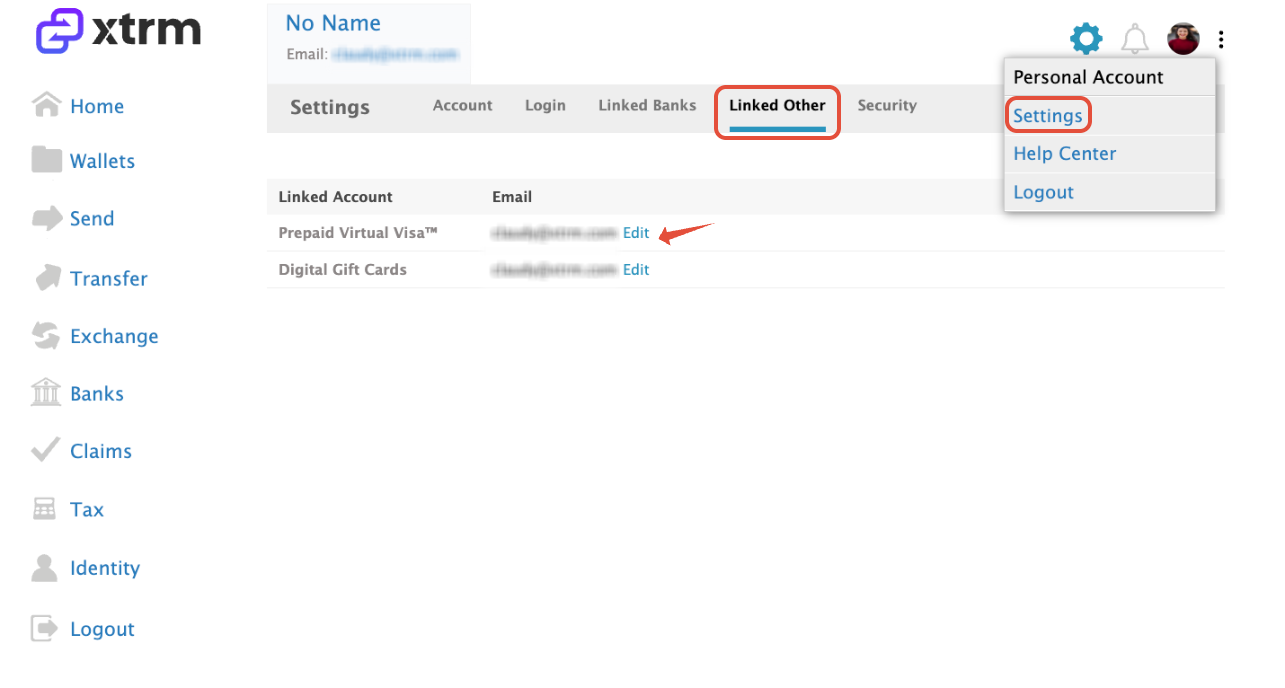
Open Settings: Click on the Settings gear icon located in the top-right corner of the page.
Navigate to Linked Other: Select Linked Other from the top sub-navigation menu.
Locate Redemption Email: Find the digital reward or gift card payment account section.
Edit Email Address: Click Edit next to the relevant email field, enter your new email address, and click Save.
Note: Updating your redemption email will apply to all future digital reward and gift card redemptions. If you need to resend a claim email for a previously completed transaction, go to your Activity log, select Details on the transaction, and click Resend Email.
Was this article helpful?
That’s Great!
Thank you for your feedback
Sorry! We couldn't be helpful
Thank you for your feedback
Feedback sent
We appreciate your effort and will try to fix the article