Overview
By default, your account displays the standard Xtrm logo. Customizing your profile with your company logo ensures consistent corporate branding across both your Xtrm admin portal and outgoing automated notifications.
Once set, your custom logo is displayed in the upper-right corner of the Xtrm platform and placed at the top-left of all system-generated email alerts sent to beneficiaries (e.g., payment notifications, remittance advice, and transaction receipts).
Key Rules & Admin Permissions
Master Admin Logo (Email Notifications): The company logo uploaded by the Master Admin is used globally across all automated email alerts sent on behalf of your organization.
Regional Admin Logo (Portal Display): Regional Admins can upload individual logos for display within regional portal views. However, email alert branding remains governed by the Master Admin upload.
Image Specifications & Supported Formats
Before uploading, ensure your image file meets the following platform guidelines:
- Supported Formats: .JPG, .PNG, .JPEG, .BMP, .GIF
Optimal Alignment: Crisp, high-contrast images on transparent or neutral backgrounds perform best in email headers.
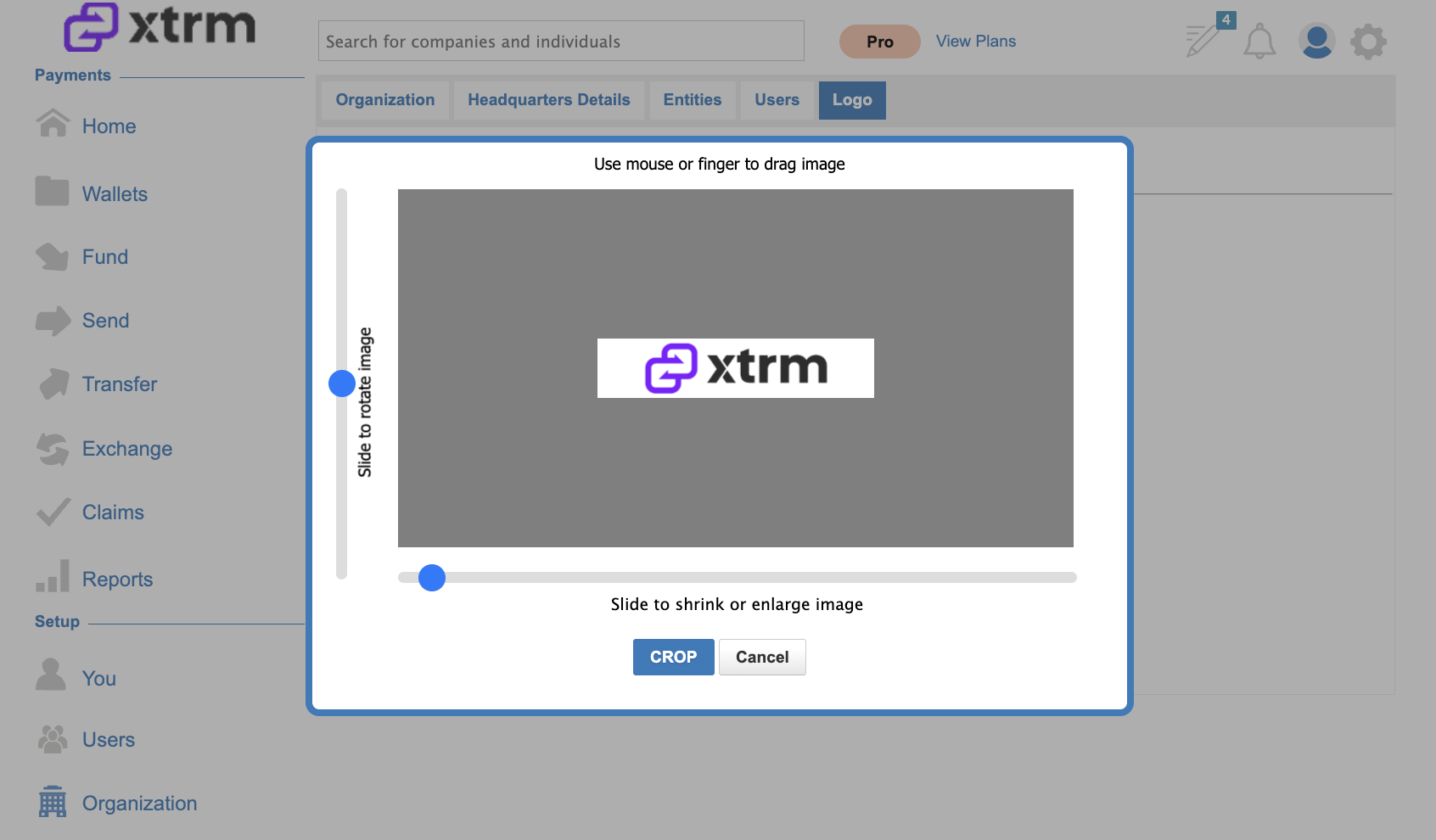
Cropping: An integrated cropping tool will prompt you to resize and fit your image upon uploading.
Step-by-Step Instructions
Step 1: Log In to Your Xtrm Account
Go to www.xtrm.com and log in using your admin credentials.
Step 2: Access Profile & Branding Settings
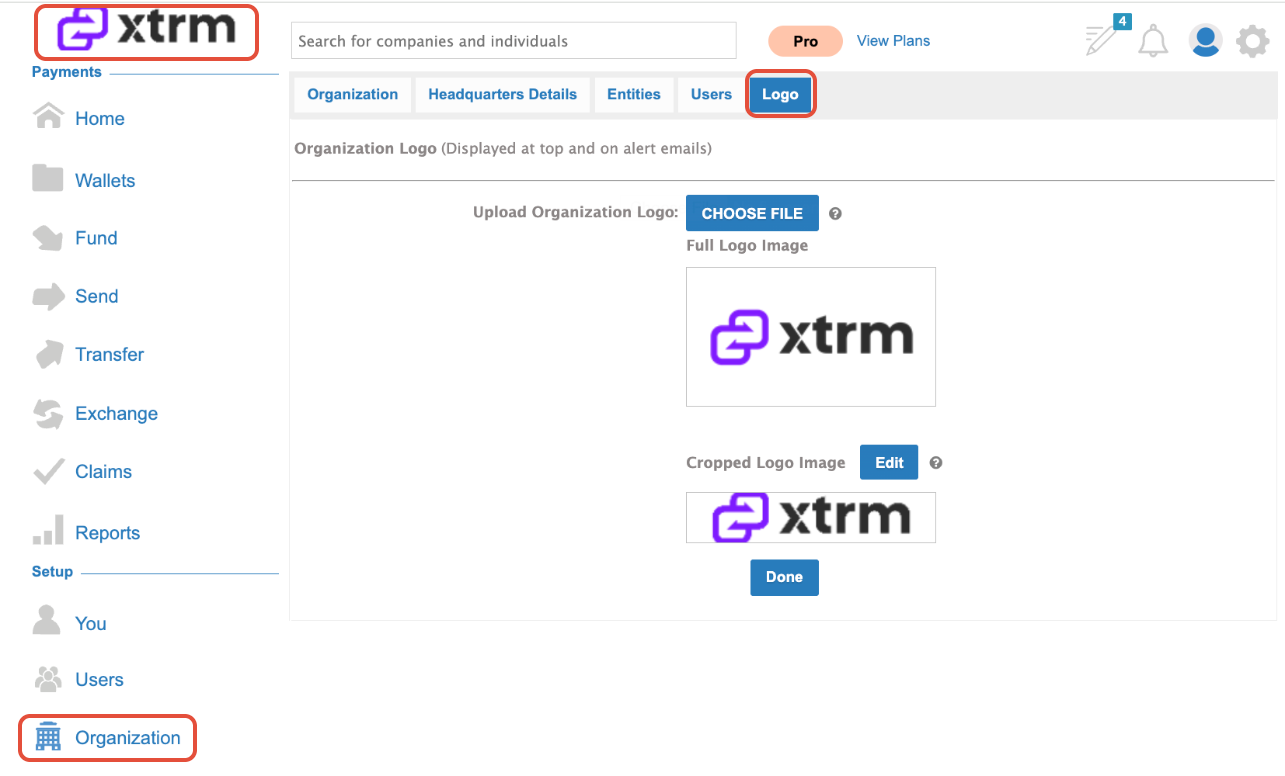
Click your profile icon or navigate to Organization and Navigate to the Logo section.
Step 3: Upload Company Logo
Click Choose File
Select your logo image file from your computer.
Step 4: Crop, Resize, and Save
Use the built-in image cropping tool to adjust the image framing and focus.
Click Crop to apply the changes.
Verify that your new logo appears in the top-right platform header.
Related Articles & Next Steps
- ONBOARD004 — Branded Registration Pages Overview
- CONMANAGER006 — Edit Connected Company Logo
- COMPANY001 — 4 Quick Steps to Start Making and Receiving Payments
Was this article helpful?
That’s Great!
Thank you for your feedback
Sorry! We couldn't be helpful
Thank you for your feedback
Feedback sent
We appreciate your effort and will try to fix the article