To process payments to companies, customers, or partners, they must have a valid company account in Xtrm. This allows their company name to appear in your branded signup pages, payment screens, and claims forms.
Many organizations are already registered in the system. You can simply search for them and add them to your contacts. If they are not yet registered, you can create a new account for them
Important Note: You do not always need to manually add them. If you submit payments via API or batch file, an account will be automatically created for the recipient upon your first payment submission.
How to Add a Beneficiary Company
Follow these steps to search for or add a new business entity:
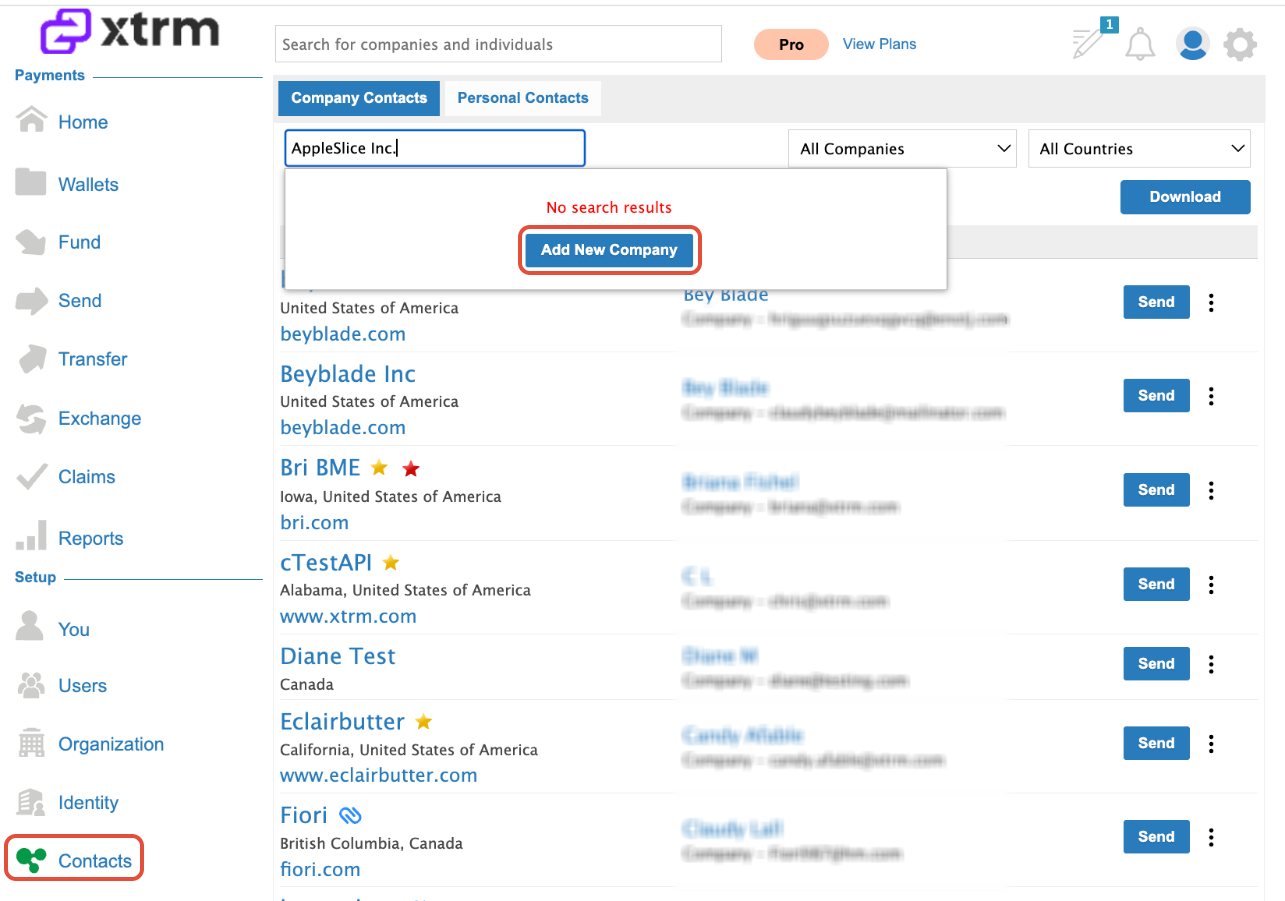
Navigate to Contacts: Log in to your account and click Contacts in the left-hand menu.
Search: Type the company name in the search field to see if an account already exists.
If found: Click Add next to the correct entry.
Add New Company: If the company does not appear in the results, click Add New Company.
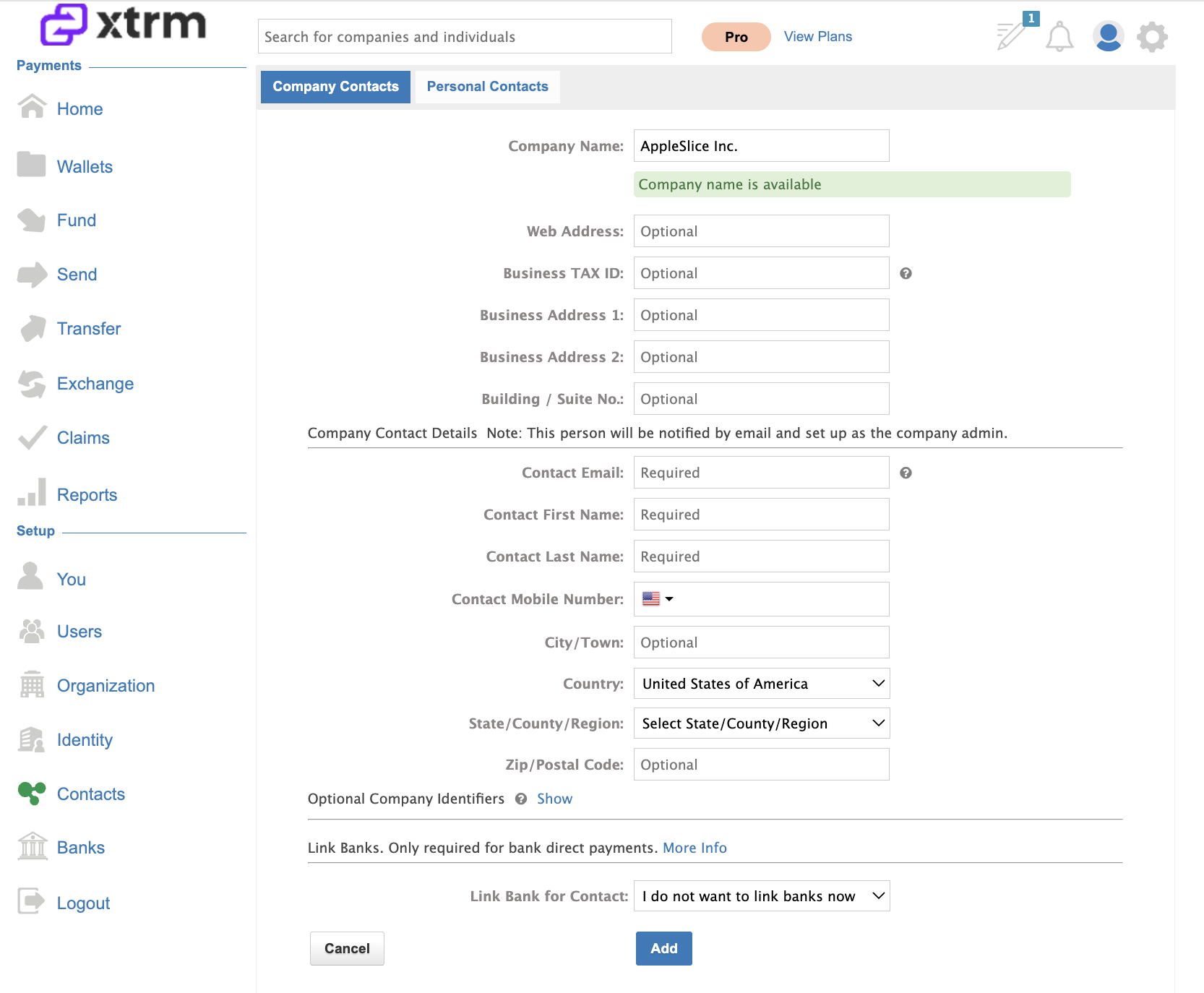
4. Enter the required details for the business.
- Compliance Requirement: You must use an email address with a valid company domain (e.g., name@companydomain.com). Consumer email domains such as @gmail.com or @yahoo.com are not compliant and will not be accepted.
Post-Creation Process
Validation: The contact person you entered will receive a branded email to activate their account and set a password.
Compliance Approval: Once the account is validated, it will move into a pending approval state. Our compliance team reviews these requests within 48 hours.
Completion: Once approved, the beneficiary will receive an email notification and can log in to their new account.
Optional: Configuring Program Access
If you are using external registration pages, you may need to grant specific program access to the company you just added. If you are unsure whether this is required, please contact support@xtrm.com.
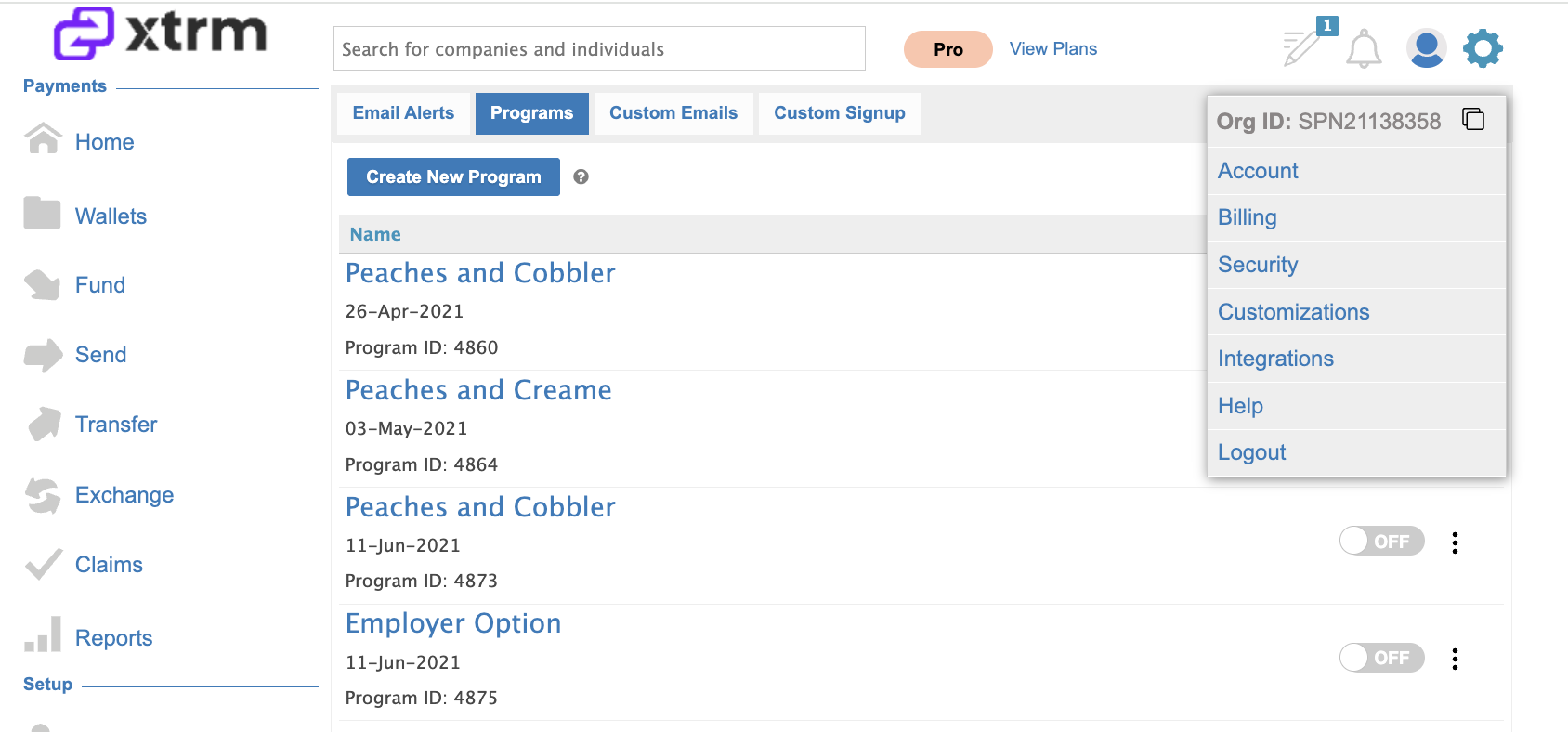
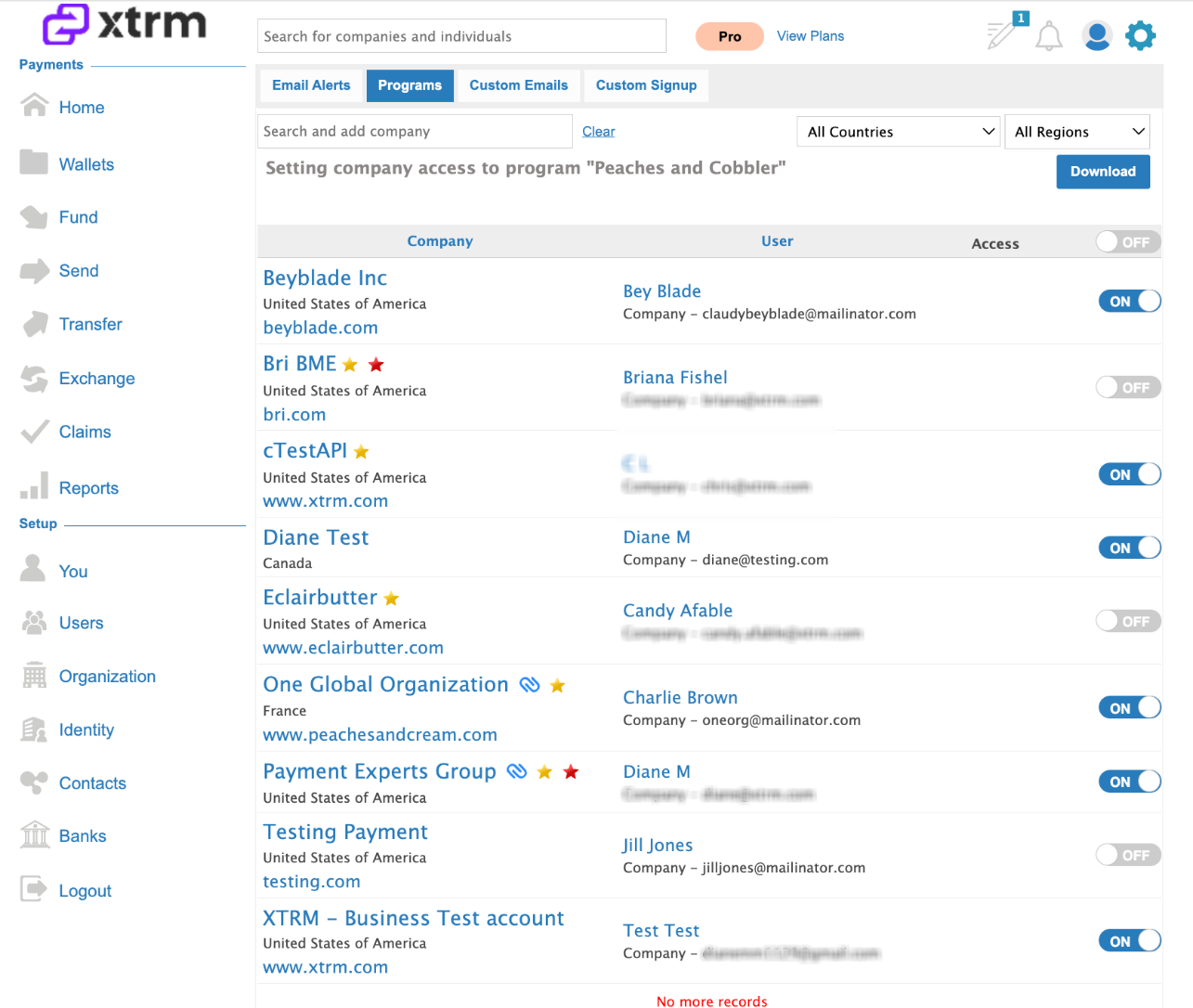
Click the Settings (cog icon) in the top right corner of the screen.
Select Customizations from the top menu, and navigate to Programs
3. Click Set Program Access on the desired program.
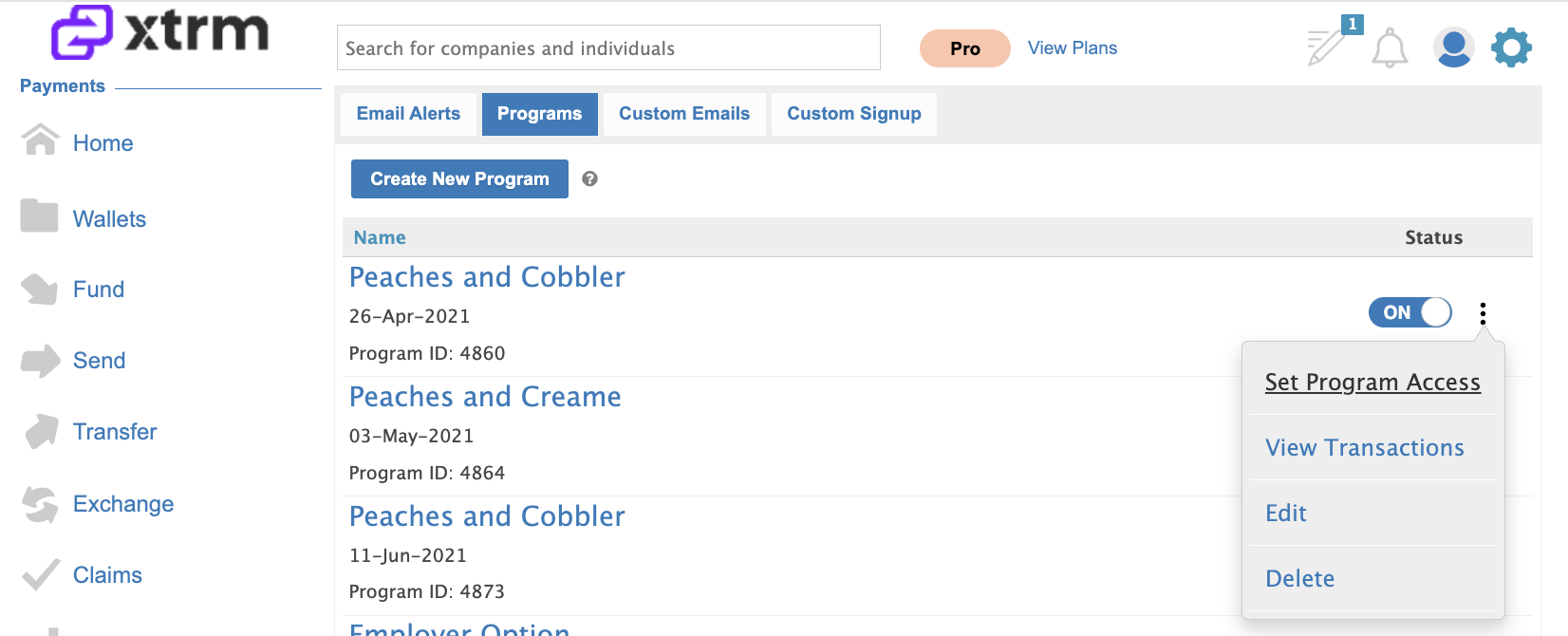
4. Toggle the access switches On or Off as needed for that beneficiary.
Note for Individual Users
If you are an individual trying to register for an Xtrm account via a third-party company’s branded signup page, and your employer is not listed:
Please ask the paying company to add your organization using the instructions above.
We do not recommend creating a company account yourself unless you are the authorized administrator for that organization, as it will require a formal compliance review by your company's finance team.
Was this article helpful?
That’s Great!
Thank you for your feedback
Sorry! We couldn't be helpful
Thank you for your feedback
Feedback sent
We appreciate your effort and will try to fix the article