This guide outlines the steps for managing your Xtrm login security, whether you are proactively updating your credentials or recovering a lost password.
Want to see how this works in real-time? Use the interactive demo below to click through the steps before reading the full guide.
Updating Your Credentials (While Logged In)
If you have active access to your account and need to change your password or email address, follow these steps:
Log In: Sign into your Xtrm account.
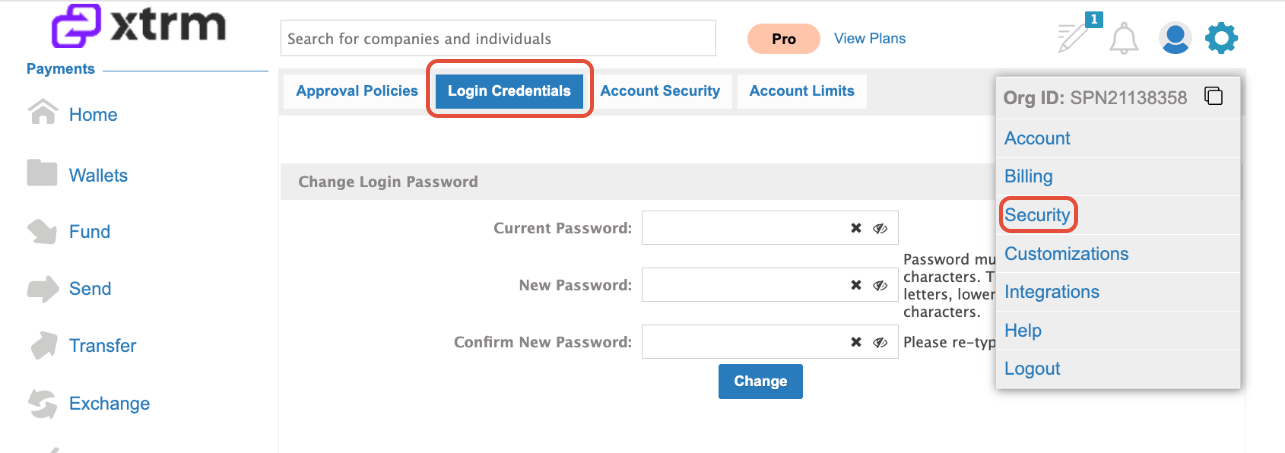
- Open Settings: Click on Settings in the top-right corner of your dashboard.
- Update Info: Select Security from the menu and click on Login Credentials to update your password
Resetting a Lost Password (While Logged Out)
If you are locked out of your account, you do not need to log in to request a reset:
Standard Reset: Visit the official Xtrm Password Reset page to initiate a recovery process for your account.
Lost Email Access: If you no longer have access to the email address associated with your account, please contact support@xtrm.com directly.
When contacting support, please include:
Your full name.
The email address on file.
Any additional details that will help the support team verify your identity and locate your account.
Was this article helpful?
That’s Great!
Thank you for your feedback
Sorry! We couldn't be helpful
Thank you for your feedback
Feedback sent
We appreciate your effort and will try to fix the article